Gaming performance depends on more than expensive hardware. Your internet connection, operating system, graphics settings, storage space, and background applications can all affect how smoothly a game runs. The best approach is to identify the problem first, make one sensible change, and check whether it actually helps.
This guide to technology hacks tgarchivegaming focuses on practical improvements that players can try without immediately buying new equipment. It also explains which popular tweaks deserve caution, how to troubleshoot lag, and how to keep your gaming accounts secure.
What Are Gaming Technology Hacks?
Gaming technology hacks are adjustments to a computer, console, network, or game that improve usability, stability, security, or performance. They do not have to involve complicated commands or advanced technical knowledge.
For example, closing an unnecessary background application may free up system resources. Adjusting graphics settings can make a demanding game easier for a computer to run. Connecting a PC to a router through Ethernet may help reduce wireless interference.
The purpose of technology hacks tgarchivegaming is to help players understand these options and choose the ones that match their actual problems. No single setting improves every system, and some changes may have little effect on newer or already well-configured devices.
Improve PC Performance Before Changing Advanced Settings
A slow computer can make games load slowly, interrupt gameplay, or struggle to maintain consistent frame rates. Before experimenting with advanced tweaks, check the basic settings that influence everyday performance.
Close Unnecessary Background Applications
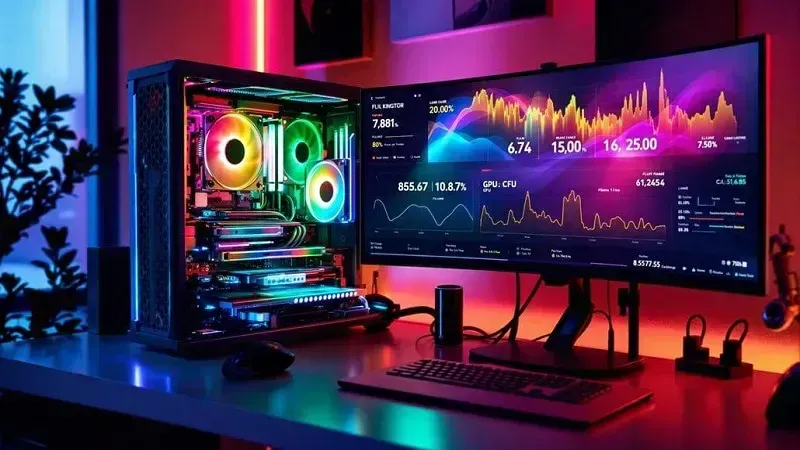
Open Task Manager on Windows by pressing Ctrl + Shift + Esc. Review the running applications and identify programs consuming substantial CPU, memory, or disk resources.
Close applications you recognize and do not need during your gaming session. Avoid ending unfamiliar system processes, since doing so can cause errors or interrupt important services.
Browser tabs, video editors, large downloads, and recording software may compete with a game for resources. The difference depends on your hardware and workload, so compare performance before and after closing them.
Review Startup Applications
Some applications automatically launch when Windows starts. Although convenient, unnecessary startup programs can increase boot time and continue consuming resources.
Open Task Manager and select the Startup apps section. Disable applications that do not need to start automatically, such as optional launchers or utilities you rarely use.
Keep essential security software and important hardware utilities enabled. The objective is to remove unnecessary background activity, not to disable everything.
Microsoft provides additional guidance on improving Windows performance, including startup management, storage cleanup, and resource monitoring.
Keep Your Operating System and Drivers Updated
Updates can include bug fixes, compatibility improvements, and security protections. Check Windows Update and use the official support application or website provided by your graphics card manufacturer to find suitable drivers.
Do not assume that every new driver will increase frame rates. Some updates address specific games or technical issues, while others may have little noticeable effect on your setup.
Create a restore point when appropriate and avoid downloading driver packages from unfamiliar websites.
Reduce Gaming Lag by Checking Your Network
Lag is one of the most frustrating gaming problems, but it can have several causes. Network latency, packet loss, wireless interference, server problems, and local congestion can all affect online gameplay.
The useful part of technology hacks tgarchivegaming is learning to distinguish network problems from graphics or hardware problems before changing settings.
Try Ethernet Before Buying New Equipment
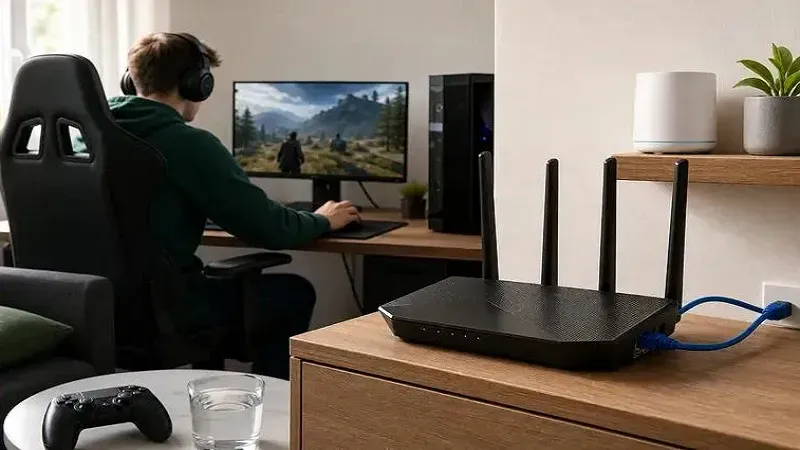
If you play on a desktop or gaming laptop, connect it to your router using an Ethernet cable when practical.
A wired connection removes the wireless link between your device and router. This can improve consistency when Wi-Fi suffers from interference or a weak signal, although it cannot fix every connection problem.
If Ethernet is not practical, move closer to your router and reduce obstacles between the device and access point. On compatible equipment, testing the 5 GHz or 6 GHz Wi-Fi band may help, particularly when nearby networks crowd the existing band.
The best option depends on your router, device, distance, and surroundings.
Understand Ping, Jitter, and Packet Loss
Ping measures how long a network signal takes to travel to a destination and back. Lower latency is generally desirable for responsive online gaming, but the ideal result depends on the game server and your connection route.
Jitter describes variation in latency. Packet loss occurs when data packets fail to reach their destination. Both can cause gameplay to feel inconsistent even when a speed test reports a high download rate.
A practical troubleshooting process starts with these questions:
-
Does the problem happen in every online game or only one?
-
Does lag occur when other people use the same connection?
-
Does the problem disappear when you use Ethernet?
-
Does the game show packet loss or unusually high latency?
Record your observations before making adjustments. This gives you a clearer idea of whether the problem comes from your local network, internet provider, or game server.
Should You Change DNS Settings?
DNS translates domain names into IP addresses. A different DNS provider may improve the time needed for certain name lookups, depending on your current configuration.
However, changing DNS does not automatically reduce in-game latency. Once a game has established a connection to its server, the DNS provider usually does not control the ongoing network route.
Try a reputable DNS service only when you have a specific reason to test it. Record the original settings first so you can restore them if needed.
Does Router QoS Help Gaming?
Quality of Service, commonly called QoS, lets supported routers prioritize certain traffic or devices. It may help when other household activities compete for limited network capacity.
For example, a large upload or download could contribute to latency spikes when the connection is saturated. Appropriate traffic prioritization may help in that situation.
QoS cannot eliminate distance-related latency, repair a faulty cable, or solve every internet provider issue. Router interfaces and features also vary by model, so consult your manufacturer’s documentation before changing settings.
Optimize Graphics Settings for Smooth Gameplay
Higher graphics settings can make games look more detailed, but they also increase the workload on your graphics card and sometimes your processor. A balanced configuration often provides a better experience than selecting every option at its highest level.
Adjust Demanding Graphics Options
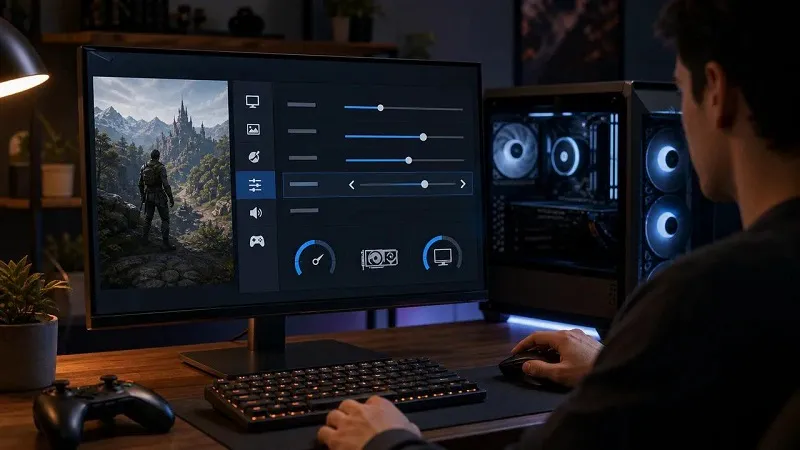
If your game suffers from inconsistent frame rates, reduce demanding settings one at a time. Depending on the title, useful options to test include shadows, volumetric effects, reflections, ambient occlusion, and render resolution.
Start with settings that have a noticeable visual cost. Keep the changes that improve smoothness without making the image unpleasant to view.
Upscaling features may also help supported games render at a lower internal resolution and reconstruct a sharper image. Availability and results depend on the game, graphics hardware, and selected mode.
Match the Display Refresh Rate
A monitor’s refresh rate describes how many times it can refresh the image each second. A higher refresh rate can provide smoother motion when the computer produces enough frames to take advantage of it.
Check your operating system’s display settings and confirm that the monitor is using its intended refresh rate. Some systems may default to a lower option after setup or configuration changes.
Remember that refresh rate and frame rate are different. A 144 Hz monitor does not guarantee 144 frames per second, and the experience also depends on frame consistency, response characteristics, and the game itself.
Use Frame Rate Limits Sensibly
An unlimited frame rate is not always the best setting. Depending on the game and hardware, a suitable frame cap may improve consistency, reduce unnecessary GPU load, or limit heat and fan noise.
Experiment with the game’s built-in frame limiter first. If you use variable refresh rate technology, follow the display and graphics manufacturer’s recommendations for compatible settings.
These technology hacks tgarchivegaming are best treated as controlled experiments. Change one option, play a representative section, and compare the results instead of adjusting many settings at once.
Manage Heat, Storage, and Power
Performance problems are not always caused by software. Heat, limited storage, and power restrictions can also affect a gaming device.
Keep Your Device Cool
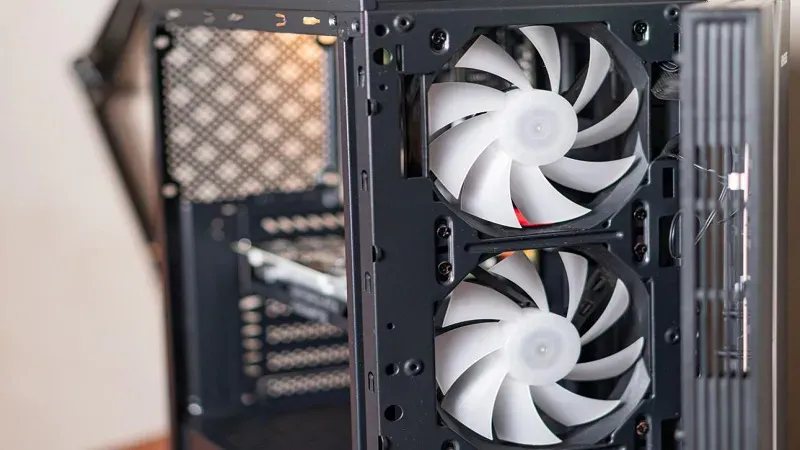
Gaming computers generate heat under heavy workloads. If cooling is inadequate, some components may reduce their operating speed to manage temperatures.
Keep laptop air vents unobstructed, avoid placing devices on soft surfaces that block airflow, and remove dust carefully according to the manufacturer’s instructions. Desktop users should also check that fans are working and that the case has adequate ventilation.
Use a reputable monitoring tool or manufacturer utility to observe temperatures during gameplay. Compare readings with the specifications for your exact hardware rather than relying on a universal temperature limit.
If temperatures appear abnormal, investigate cooling before attempting overclocking or other performance modifications.
Free Up Storage Space
A nearly full drive can complicate updates, installations, and general system maintenance. Remove temporary files through the operating system’s built-in storage tools and uninstall applications you no longer use.
Do not delete unfamiliar folders simply because they look large. Game saves, configuration files, and personal data may be stored in locations that are not obvious.
If a game is installed on a hard drive and offers long loading times, moving it to a compatible solid-state drive may help. The actual improvement depends on the game and the rest of the system.
Choose the Right Power Mode
On supported Windows devices, a higher-performance power mode may help when power settings restrict performance. The trade-off can include greater power consumption, more heat, and reduced laptop battery life.
For long gaming sessions, connecting a laptop to its recommended power adapter may also matter. Follow the manufacturer’s guidance for your particular device.
Avoid modifying BIOS settings or using aggressive overclocking profiles unless you understand the risks and have a reliable way to monitor stability.
Protect Your Gaming Accounts and Downloads
Performance is important, but security deserves equal attention. A compromised gaming account can result in lost access, unauthorized purchases, or exposure of personal information.
Enable Two-Factor Authentication
Where available, enable two-factor authentication or the platform’s equivalent account protection feature. Use a unique password for each important account, especially your gaming platform and associated email account.
Never share authentication codes with people claiming to be support agents. Genuine account recovery should take place through the platform’s official support process.
Steam’s account security recommendations explain protective measures, including Steam Guard, password security, and checking authorized devices.
Download Software From Trusted Sources
Avoid unknown executables promoted as instant FPS boosters, free premium tools, or secret gaming optimizers. Such downloads may contain unwanted software or malware.
Use official game stores, verified developer websites, and trusted hardware manufacturers. Scan suspicious files with your security software and do not disable antivirus protection just to run an unfamiliar utility.
The safest technology hacks tgarchivegaming approach is to prefer reversible settings and built-in tools over applications that demand broad system permissions without a clear explanation.
Review Privacy and Account Permissions
Check which applications have access to your gaming accounts, voice chat, and connected services. Remove permissions you no longer need and review account activity when your platform provides that option.
Use privacy settings to control who can view your profile, send messages, or invite you to games. These adjustments can reduce unwanted contact without affecting performance.
Choose Useful Settings for Consoles and Mobile Gaming
Not every gaming improvement requires a desktop computer. Console and mobile players can also improve their experience through practical configuration and maintenance.
On consoles, install system and game updates through official settings. Check available storage, close games that are no longer needed, and review network connection details when online play becomes unstable.
For mobile gaming, close resource-heavy applications if the device struggles under load. Reduce demanding visual settings when available, avoid charging in excessively hot conditions, and keep the operating system updated.
Disable unnecessary notifications during competitive sessions if interruptions are a problem. Use the device’s built-in gaming or focus features when they are supported and useful.
Avoid third-party tools that promise unrestricted access to paid content or bypass a game’s security systems. Such tools may compromise accounts, violate platform rules, or introduce malware.
Test Changes Instead of Trusting Every Gaming Tip
Online guides sometimes present individual settings as universal solutions. In practice, a tweak that helps one system may do nothing on another.
A better method is to establish a baseline before experimenting. Record your average frame rate, any noticeable stuttering, temperatures, and network latency under reasonably similar conditions.
Change one setting at a time and repeat the same game section or test. If the result is not repeatable, restore the original setting rather than assuming the adjustment worked.
This is especially important for advanced recommendations such as CPU core affinity, registry edits, memory cleaners, and unofficial optimization utilities. These techniques are not automatically beneficial and can introduce new problems when used without a specific diagnosis.
A Practical Troubleshooting Order
| Problem | First thing to check | Next step |
|---|---|---|
| Low frame rate | Graphics settings and resource usage | Reduce demanding options |
| Sudden stuttering | Background activity and temperatures | Monitor system behavior |
| Online lag | Ping, packet loss, and connection type | Test Ethernet if possible |
| Slow loading | Available storage and drive type | Review storage health |
| Unexpected crashes | Updates and game files | Use official repair tools |
| Suspicious account activity | Login history and account access | Secure the account immediately |
This order helps separate common problems without requiring you to buy new hardware or install several utilities.
Build a Gaming Setup That Stays Reliable
A reliable setup comes from regular maintenance rather than constant tweaking. Keep important software updated, monitor available storage, maintain suitable cooling, and use sensible security practices.
When something goes wrong, look for the simplest explanation first. A game update, a crowded Wi-Fi connection, a background download, or an overheating laptop can create problems that no graphics tweak will solve.
The most useful technology hacks tgarchivegaming readers can apply are the ones that address a real issue, produce a repeatable improvement, and do not create unnecessary risks.
You do not need to change every setting to get better results. Start with the area that is causing trouble, test a small adjustment, and keep it only when the improvement is clear.
Conclusion
Better gaming performance begins with understanding how your hardware, software, and network work together. Closing unnecessary applications, adjusting graphics settings, checking network stability, maintaining adequate cooling, and protecting accounts are practical starting points.
No single trick guarantees higher frame rates or eliminates all lag. By making careful changes and measuring the outcome, players can improve their setups without wasting money on unnecessary upgrades or risky optimization tools.
The goal is a gaming experience that feels smoother, stays secure, and remains reliable over time.
Frequently Asked Questions
What does this gaming technology guide cover?
It covers PC performance, graphics configuration, internet troubleshooting, cooling, storage management, and account security. The goal is to help players identify practical improvements without relying on unsupported performance claims.
Can I improve gaming performance without upgrading my PC?
Yes, sometimes. Closing unnecessary applications, adjusting graphics quality, freeing storage space, and correcting power settings may help. However, software changes cannot overcome every hardware limitation.
How can I reduce lag in online games?
Start by checking your ping, packet loss, and connection stability. Try Ethernet if possible, pause large downloads, and check whether the problem affects multiple games. Contact your internet provider if the evidence suggests a connection issue outside your home.
Does changing DNS improve gaming?
Not necessarily. A different DNS provider may improve domain lookup times in some circumstances, but it does not automatically improve the latency of an established gaming connection.
Are gaming optimization tools safe?
Some are legitimate, but others may be ineffective or unsafe. Prefer built-in operating system settings and official manufacturer utilities. Research third-party software carefully before installing it.
How often should I maintain my gaming PC?
Check for updates regularly, monitor temperatures when performance changes, and review storage and startup applications periodically. Clean physical components according to the manufacturer’s recommendations.
What is the best starting point for beginners?
Start with basic troubleshooting before attempting advanced changes. The recommendations in technology hacks tgarchivegaming are most useful when you match each adjustment to a specific problem and verify the result.